


Apple Music offers a stunning catalog of over 100 million songs, but it comes with a catch familiar to every subscriber: you don’t actually own the files. Your downloads are encrypted with DRM (Digital Rights Management) and expire the moment you cancel your subscription. If you want true ownership and the freedom to play your favorite playlist on any device, you need to convert your files. In this guide, we’ll show you the best method to download your Apple Music playlist to MP3 using ViWizard Apple Music Converter, ensuring you keep your music forever.
Why Convert Your Apple Music Playlist to MP3?
Before diving into the “how,” it’s important to understand the “why.” While Apple Music’s ecosystem is seamless, it is also a walled garden. Converting your playlist to MP3 liberates your music in several key ways.
- Universal Compatibility: MP3 is the industry standard. Unlike Apple’s protected M4P format, MP3 files play on everything—from your car’s stereo and smart speaker to Android phones and old-school iPods.
- Permanent Ownership: Once you download an Apple Music playlist to MP3, the files are yours forever. If you decide to cancel your subscription, your music library won’t disappear; it remains safely stored on your hard drive.
- Creative Freedom: MP3 files can be edited. You can create custom ringtones, chop samples for production, or burn them to a CD for a road trip mix.
The Problem with Apple Music Downloads
When you download a song from Apple Music using the official app, you aren’t downloading a standard audio file. You are downloading a protected stream that is locked to your Apple ID. These files are unplayable in other software, unreachable on non-Apple devices, and become unplayable if your subscription lapses.
To truly download an Apple Music playlist to MP3, you need a specialized tool that can strip the DRM protection and convert the audio stream into a universally accepted format. This is where ViWizard Apple Music Converter comes into play.
Meet ViWizard Apple Music Converter
ViWizard Apple Music Converter is a professional-grade software solution available for both Windows and Mac. It is specifically engineered to bypass DRM encryption from Apple Music tracks, iTunes M4P songs, and audiobooks, converting them into DRM-free formats like MP3.
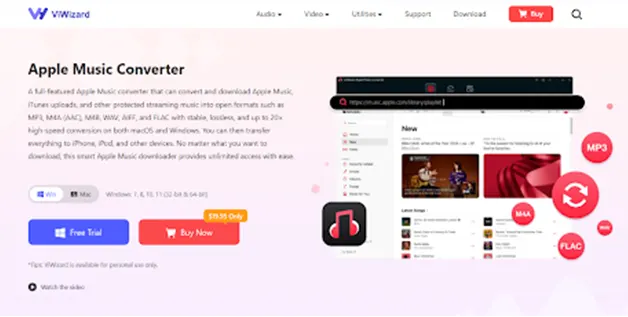
Here’s why ViWizard stands out as the best tool for the job:
- Lossless Quality: It preserves 100% of the original audio quality. You can output files with a bitrate of up to 320 kbps, ensuring your music sounds just as good as it does in the Apple Music app.
- ID3 Tags Preserved: One of the biggest headaches after converting music is messy metadata. ViWizard retains all ID3 tags, including Title, Artist, Album, and Album Artwork, keeping your library organized.
- Batch Conversion: You don’t have to convert songs one by one. ViWizard allows you to select entire playlists or albums and convert them all at once at speeds up to 30X faster than real-time.
- Multiple Formats: While MP3 is the goal, ViWizard also supports converting to FLAC, WAV, AIFF, and M4A, giving you flexibility depending on your needs.
Also Read: How to Download Youtube Videos Online For Free
Step-by-Step: How to Download Apple Music Playlist to MP3 with ViWizard
Ready to take control of your music? Follow this simple guide to convert your favorite playlist using ViWizard Apple Music Converter.
Step 1: Install and Launch ViWizard
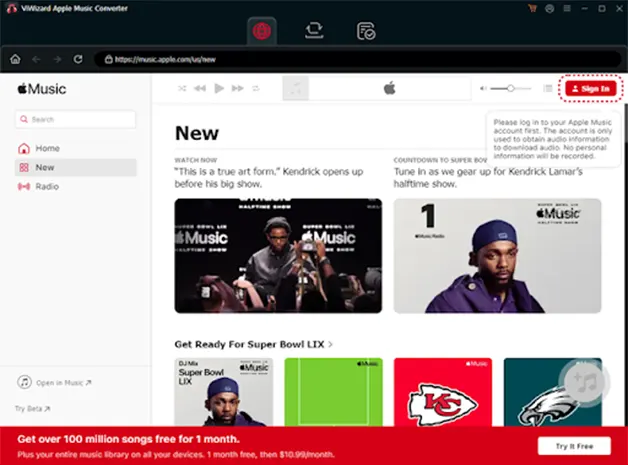
First, download and install the ViWizard Apple Music Converter from the official website. Once installed, launch the program. The integrated Apple Music web player opens automatically. Sign in to your account.
Step 2: Find Your Playlist
Using the built-in Apple Music web player within ViWizard, navigate to your library. Find the playlist you want to download. You can simply drag and drop the playlist into the conversion list of ViWizard interface, or click the “Add” button to select files.
Step 3: Select MP3 as Your Output Format
Before you start converting, you need to adjust the settings.
- Look for the settings menu (often an icon in the top right corner).
- In the “Preference” tab, select MP3 as the output format.
- Here, you can also customize the Bit Rate. For the best sound quality, select 320 kbps. You can also adjust the Sample Rate and Channel to your liking.
Step 4: Start the Conversion
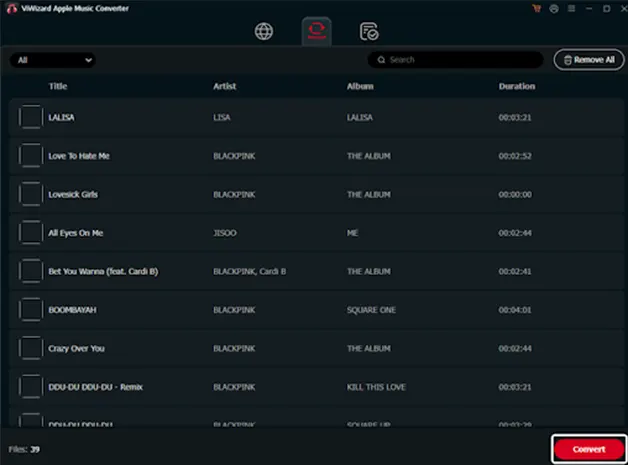
Once everything is set, click the big “Convert” button. ViWizard will begin processing your playlist. It will remove the DRM protection and save every song as a high-quality MP3 file on your computer.
Step 5: Locate Your DRM-Free MP3 Files
When the conversion is finished, click the “Converted” icon to access the output folder. Here you will find all your songs, now in MP3 format, complete with all their metadata and album art intact.
What Can You Do with Your New MP3 Files?
Once you have successfully downloaded your Apple Music playlist to MP3, a world of possibilities opens up:
- Cross-Platform Listening: Upload them to a personal cloud server, add them to a Plex library, or play them on a device that doesn’t support Apple Music.
- Backup Your Collection: Burn them to a DVD or store them on an external hard drive for safekeeping.
- Use in Creative Projects: Import the files into audio editing software like GarageBand or Audacity to create your own edits.
Conclusion
Don’t let your music library be held hostage by DRM restrictions. While Apple Music is a fantastic service for streaming, it falls short when it comes to true ownership. By using ViWizard Apple Music Converter, you can easily download any Apple Music playlist to MP3, ensuring your favorite tracks are always accessible, playable, and permanently yours.
Whether you want to future-proof your collection, play music on a wider variety of devices, or simply have the peace of mind that comes with ownership, ViWizard is the ultimate solution. Download it today and unlock your Apple Music library.
Also Read: Enjoy Your Favorite Music Online by Using YouTube to mp3 Converter