



Most WiFi coverage problems are simply due to the router we use not having enough transmission power. Although current routers have greatly improved their features thanks to new standards, unfortunately those installed by Internet companies are not always the most up-to-date or those that offer the best performance. In this article, we will offer you the best and most effective ways to improve your Wi-Fi coverage.
10 Effective Ways to Improve Wi-Fi Coverage
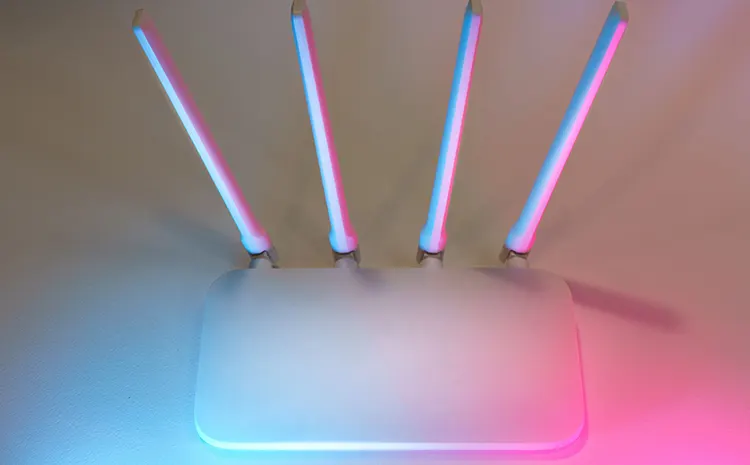
1. Place Your Router in the Right Spot
Areas of your home closer to the router will have better Wi-Fi, while those farther away will have worse coverage, especially if the signal has to travel through floors and walls. Ideally, place it as close to the centre of your home as possible, or as close as possible to where you use your computer or mobile devices.
2. Avoid Sources of Wi-Fi Interference
Wi-Fi connections use radio signals, just like mobile phones, televisions, and many other technological devices. This means that wireless coverage can be affected by other electromagnetic waves generated by other devices. To avoid problems, it’s best to place your router away from electrical appliances. Metal surfaces, aquariums, and mirrors can also cause difficulties.
3. Adjust Your Router’s Antenna Orientation
Older routers include one or two antennas on the back, which are often folded down to save space. Their function is to help improve Wi-Fi signal distribution so it can reach every room. The most recommended position for the router’s antennas are in an “L” shape, forming a 90° angle. That is, you should position one antenna vertically and the other horizontally.
4. Secure Your Wi-Fi Network
Wi-Fi coverage and signal strength problems in your home or office might be due to someone connecting to your wireless network without permission. Preventing such intrusions is as simple as changing the default Wi-Fi password to a more secure one that only you know.
5. Keep Your Router’s Firmware Updated
Routers run on internal software called firmware, similar to how a computer runs on an operating system. It comes pre-installed, but manufacturers release updates over time to fix bugs, improve speed, and patch security holes—so if you’ve never checked, it’s worth doing.
6. Monitor Connected Devices
Even if every device on your network is one you actually approved, having too many connected at once can quietly drag down performance for everyone.
7. Choose the Right Wi-Fi Frequency Band
Wi-Fi runs on two bands: 2.4 GHz and 5 GHz. 2.4 GHz reaches further but is slower; 5 GHz is faster but doesn’t travel as well through walls and distance.
8. Limit Bandwidth-Intensive Tasks
Big downloads, device backups, streaming, and online gaming all eat up bandwidth fast. Running several of these at once is a common reason Wi-Fi feels slow even when nothing’s actually wrong with it.
9. Use Wi-Fi Repeaters and PLC Network Adapters
In a large home or office or the offices having multiple floors, outdoor areas like a garden or terrace—even a strong router can’t always cover everything place. A Wi-Fi repeater extends the signal into those more distant areas. A PLC (powerline) adapter takes a different approach, sending the signal through your home’s electrical wiring so any room with an outlet can get a wired-quality connection.
10. Use a Mesh Wi-Fi Network for Wider Coverage
Sometimes one router just isn’t enough. A mesh network solves that by linking several routers, repeaters, or powerline adapters placed around the house into a single network—so instead of patchy coverage from one device, every room gets a strong signal from whichever node is closest.
Also Read: WiFi: 5 Constraints To Manage When Deploying A Network
FAQs – Frequently Asked Questions
1. Why Does My Wi-Fi Have Dead Zones Even Though My Internet Plan Is Fast?
This is because internet speed and Wi-Fi coverage are two different things. Your internet service is the connection coming into the house; Wi-Fi is how that connection gets spread around wirelessly. A fast plan doesn’t help if the signal can’t physically reach the back bedroom.
2. Where Should I Actually Put My Router?
Somewhere central and elevated — a shelf or table, not the floor, and not tucked inside a cabinet. Think of it like a light source: the more open the space around it, the farther the signal reaches in every direction.
3. What’s Blocking My Signal Without Me Realising It?
Thick walls, brick, concrete, large metal appliances, and even fish tanks absorb or reflect Wi-Fi signals. Cordless phones and some other electronics can add interference too. If one room always struggles, check what’s between it and the router before blaming your provider.
4. Does Switching Wi-Fi Channels Actually Help?
Yes, if your neighbours’ networks are crowding the same channel – common in apartments. Most newer routers pick a clean channel automatically, but if yours doesn’t, switching manually (or turning on automatic channel selection) can cut down on interference-related slowdowns.
5. Do I Need a New Router?
If your router is more than 4-5 years old, it probably needs to be replaced. Older routers weren’t built for how many devices the average home connects now, and they typically don’t support Wi-Fi 6, 6E, or 7 — the newer standards that handle multiple devices and reduce interference more effectively.
6. What’s the Difference Between a Wi-Fi Extender and a Mesh System?
An extender rebroadcasts your existing signal into a specific weak spot — it’s cheap and straightforward to set up, but it’s a patch, not a full fix. A mesh system uses multiple connected nodes to blanket the whole home under one network name, which works better if you have multiple floors, thick walls, or several persistent dead zones rather than just one.
7. When Should I Choose Mesh Over an Extender?
If it’s a single weak room, an extender is usually enough. If it’s a larger home, has multiple floors, or you want seamless roaming between rooms without your phone dropping and reconnecting, Mesh is the better investment.
8. Are There Fixes That Don’t Cost Anything?
Yes — repositioning the router, clearing obstructions around it, and updating its firmware are all free and often make a noticeable difference before you spend on any hardware.
9. How Do I Get Wi-Fi to Reach Upstairs Reliably?
Move the router closer to a stairwell or central point rather than one end of the house, and if that’s not enough, add a mesh node or extender specifically on the floor that’s struggling. Powerline adapters are another option if Wi-Fi alone won’t cooperate.
10. What’s the Single Most Effective First Step?
Router placement. It costs nothing, takes a few minutes, and fixes more coverage problems than people expect before they ever consider buying new equipment.
Conclusion
Weak Wi-Fi usually isn’t one big problem. It’s a few small ones adding up. Maybe the router’s in a bad spot, the firmware’s outdated, or too many devices are sharing the same band. Start with the free fixes first: move the router, update the firmware, and choose the right Wi-Fi band for each device. Those alone can often make a real difference.
If you’ve still got dead zones after that, especially in a bigger home, that’s when a repeater, PLC adapter, or mesh network makes sense. Work through the list in order, and you may be able to improve your Wi-Fi without spending money you didn’t need to.
Also Read: 5 Easy Ways To Secure Your Wi-Fi Network